Clipboard

Everything you copied.
Right when you need it.

Searchable history with smart filters, favorites, Paste Stack, and privacy controls — open from anywhere with ⌥⌘V.

Requires macOS 14 Sonoma or later

Checking your browser…

Clipboard showing searchable history, content filters, named favorites with keyboard shortcuts, and a rich link preview

More than clipboard history

The shortcuts you want.
The details you didn’t expect.

Favorites at your fingertips

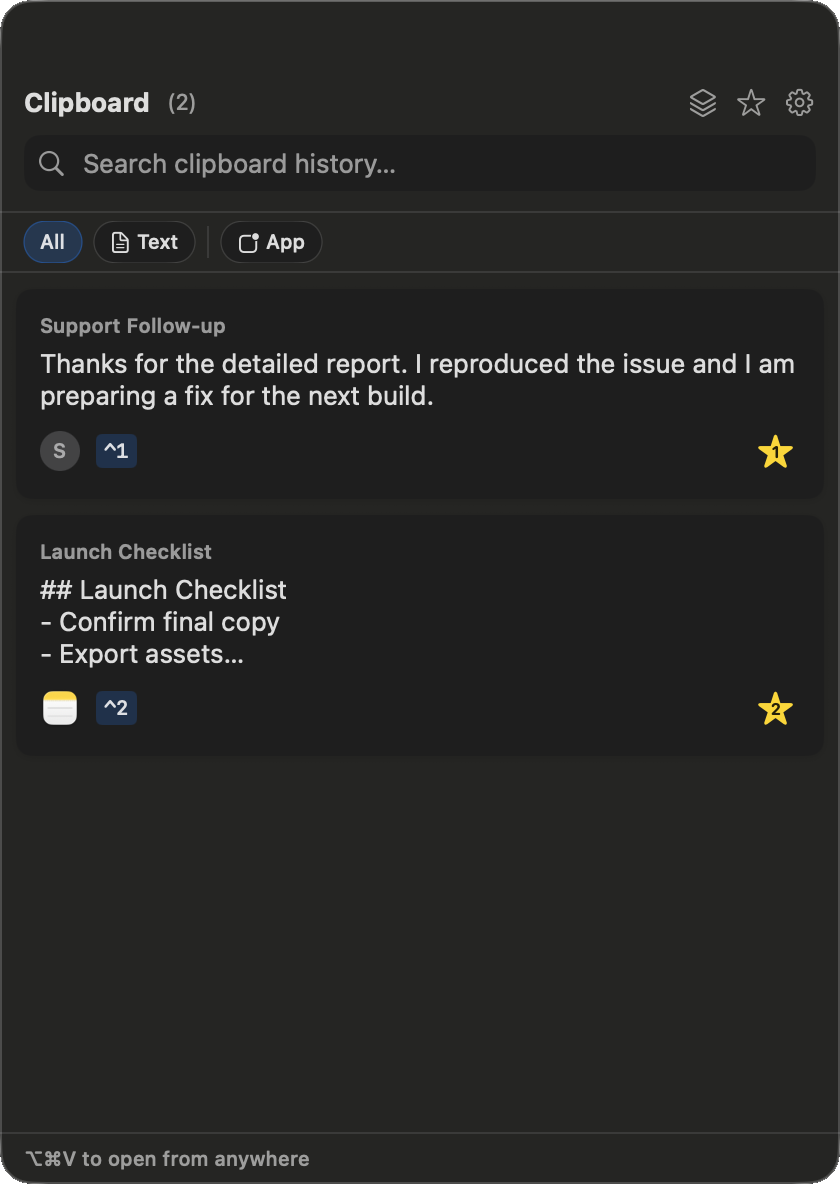
Star the clips you use most, give them clear names, and reorder them your way.

  • Hold Option while Clipboard is open to instantly show only your favorites.
  • Use Control–1 through Control–9 to paste favorite slots from the keyboard — even with the popover closed.
  • Edit saved favorite text with ⌘E without recreating the item. Favorites never auto-delete.
Clipboard favorites view with named Support Follow-up and Launch Checklist items assigned to keyboard shortcuts

Your clipboard, on every Mac

iCloud keeps history, favorites, settings, and favorite shortcuts aligned across your Macs.

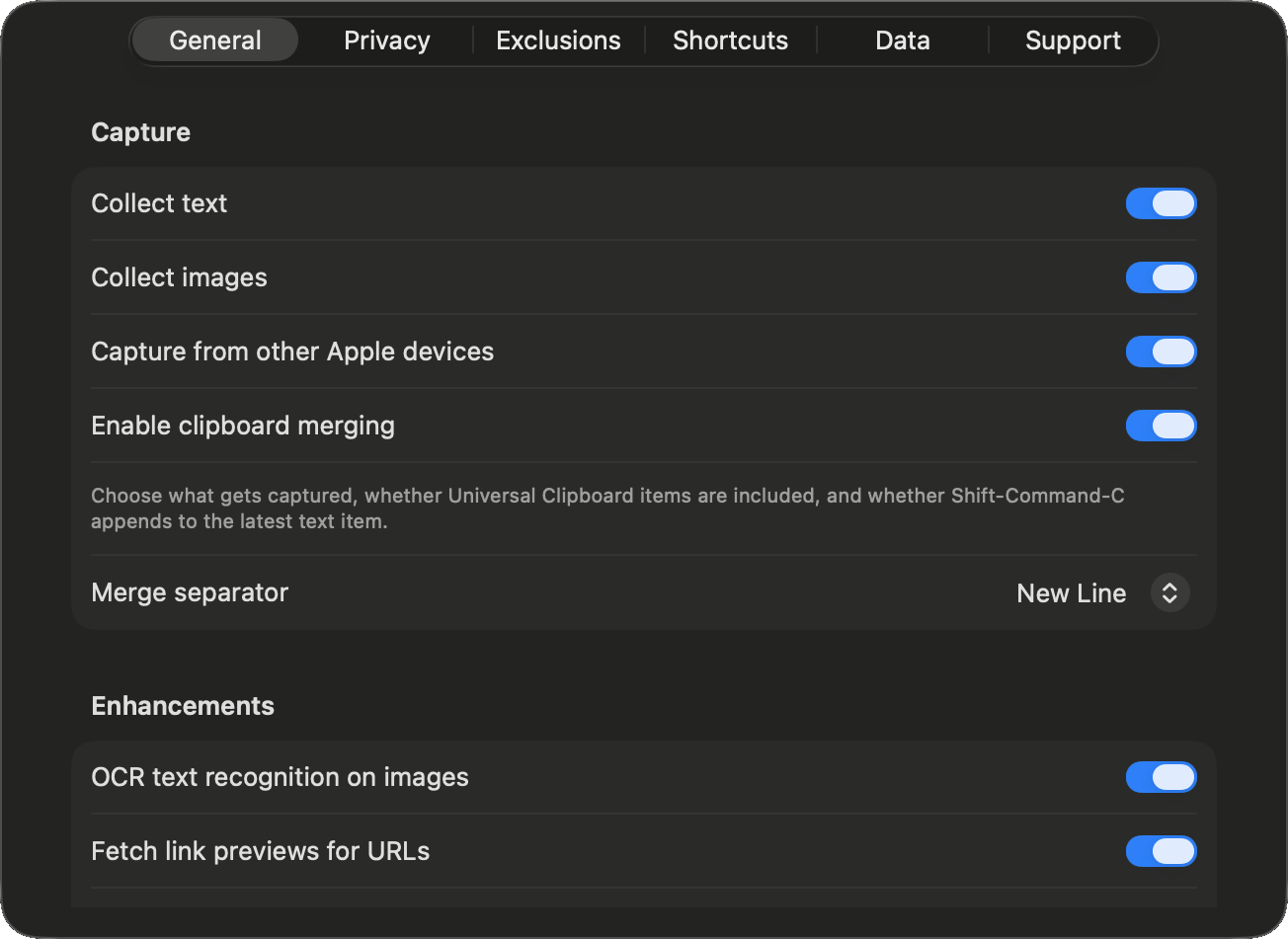
  • Capture Universal Clipboard content copied on your iPhone, iPad, or another Mac.
  • Merge related copies with ⇧⌘C, and choose whether images sync.
  • Keep working locally when iCloud is unavailable; Clipboard catches up when it returns.
Clipboard settings showing text and image capture, Universal Clipboard, clipboard merging, OCR, and link previews

Find it. Filter it. Reuse it.

Open from anywhere, search instantly, and narrow history before you copy again.

  • Open with ⌥⌘V (customizable) or the menu bar icon — search focuses immediately.
  • Filter by Text, Images, Links, Code, Rich Text, or source app; combine with search.
  • Press Space for a full preview, Return to copy, and swipe or right-click to delete.
  • See which app each clip came from — including Universal Clipboard items from other devices.
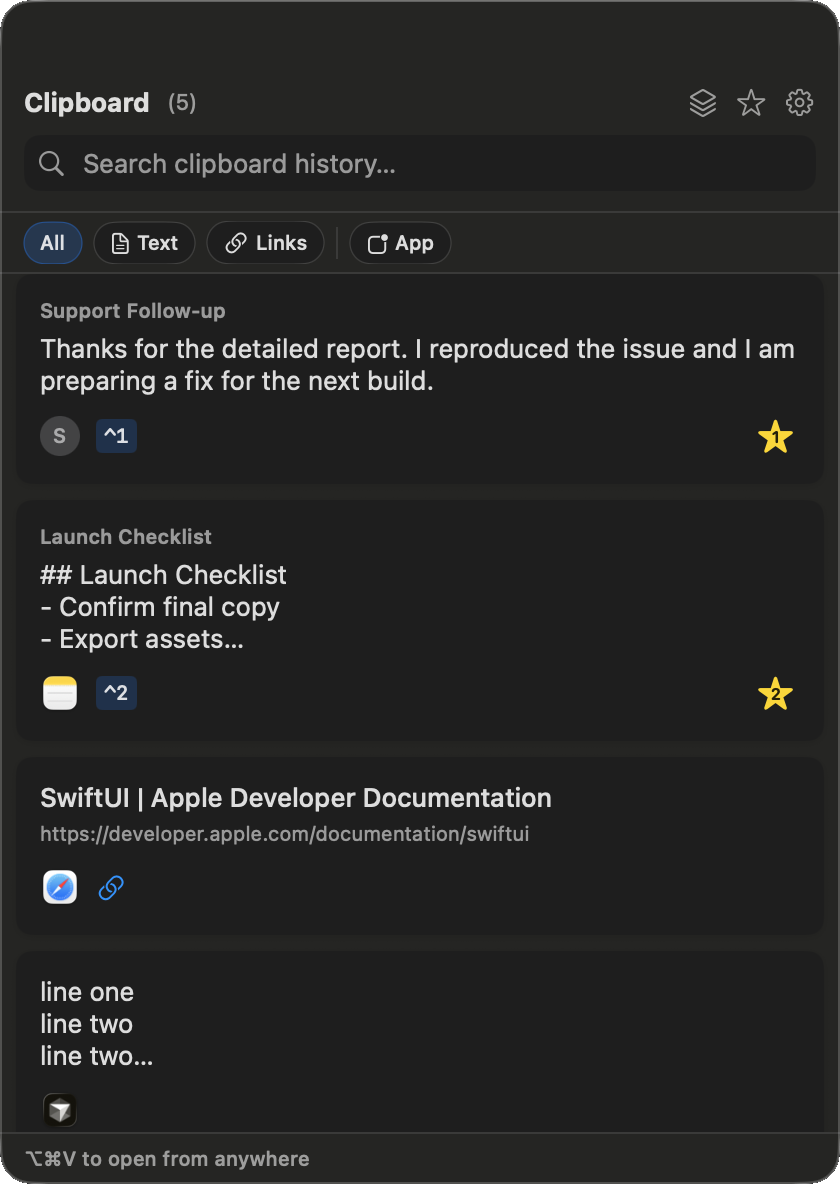
Clipboard popover with search, content-type filters, favorites, and a rich link preview

Paste Stack for multi-step paste

Queue several clips, then paste them in order without reopening Clipboard each time.

  • Toggle Paste Stack from the popover header and add items from the row menu.
  • Drag to reorder the queue; remove items you no longer need.
  • Start Pasting, then each ⌘V advances to the next clip — stop anytime.
  • Built for form fills, checklists, and multi-field workflows. Accessibility helps simulated paste stay reliable.

Transform, OCR, and polish

Clean up text and pull more out of images before a clip goes back on the pasteboard.

  • Transform case, trim whitespace, sort or dedupe lines, strip HTML, convert to a list, and URL-encode or decode.
  • Extract searchable text from images with OCR, then Copy Detected Text.
  • Fetch link previews with page titles and favicons for URLs.
  • Paste Markdown as rich text, or copy/paste as plain text when formatting should stay behind.
  • On Macs with Apple Intelligence: summarize, fix grammar, shift tone, and extract key points.
  • UPPERCASE
  • lowercase
  • Title Case
  • Sentence case
  • Trim Whitespace
  • Remove Line Breaks
  • Sort Lines
  • Remove Duplicates
  • Strip HTML
  • Convert to List
  • URL Encode
  • URL Decode

Keyboard-first, mouse-optional

Once Clipboard is open — or even when it isn’t — stay in flow from the keyboard.

  • ↑ / ↓ navigate, copy, clear search then selection.
  • Space opens full preview; ⌘E edits a favorite.
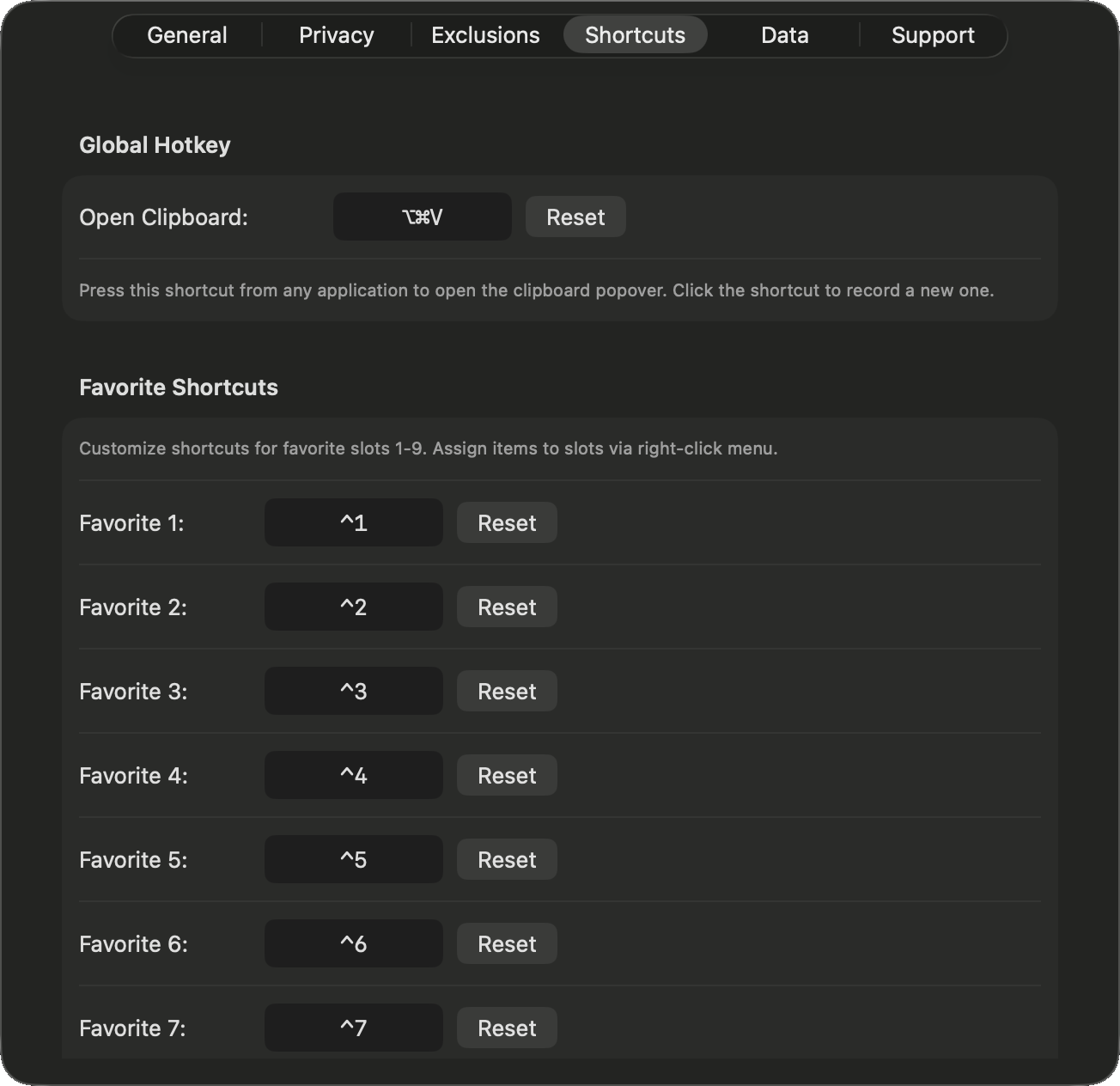
  • Record your own open hotkey and favorite slots in Settings → Shortcuts.
  • Right-click for copy, paste, transforms, Paste Stack, exclude app, assign a slot, and more.
Clipboard Shortcuts settings showing the open hotkey, favorite slots, and in-popover keyboard reference

Privacy that stays under your control

Decide what sensitive and noisy clipboard traffic ever lands in history.

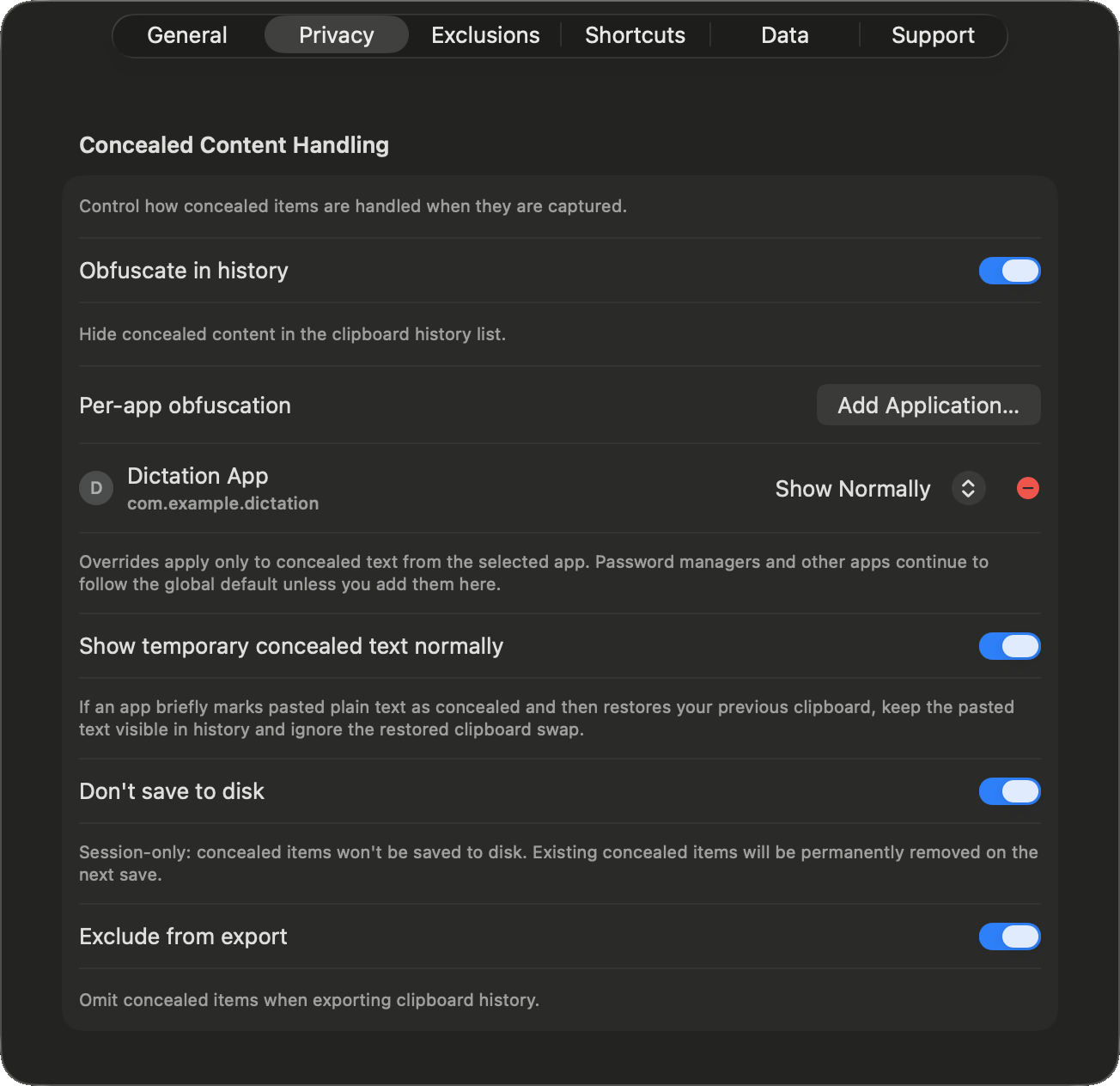
  • Obfuscate concealed content in the UI; optionally keep it session-only so it never hits disk.
  • Per-app overrides for when you do want to see briefly-concealed text (for example dictation).
  • Ignore transient, auto-generated, and password-manager noise; reduce passive plain-text captures.
  • Exclude apps from capture — Keychain Access is excluded by default — or purge prior items from an app.
  • Exclude concealed content from JSON exports; watch “copies filtered today” if filters feel aggressive.
Clipboard privacy settings with concealed-content obfuscation, per-app controls, session-only storage, and export protection

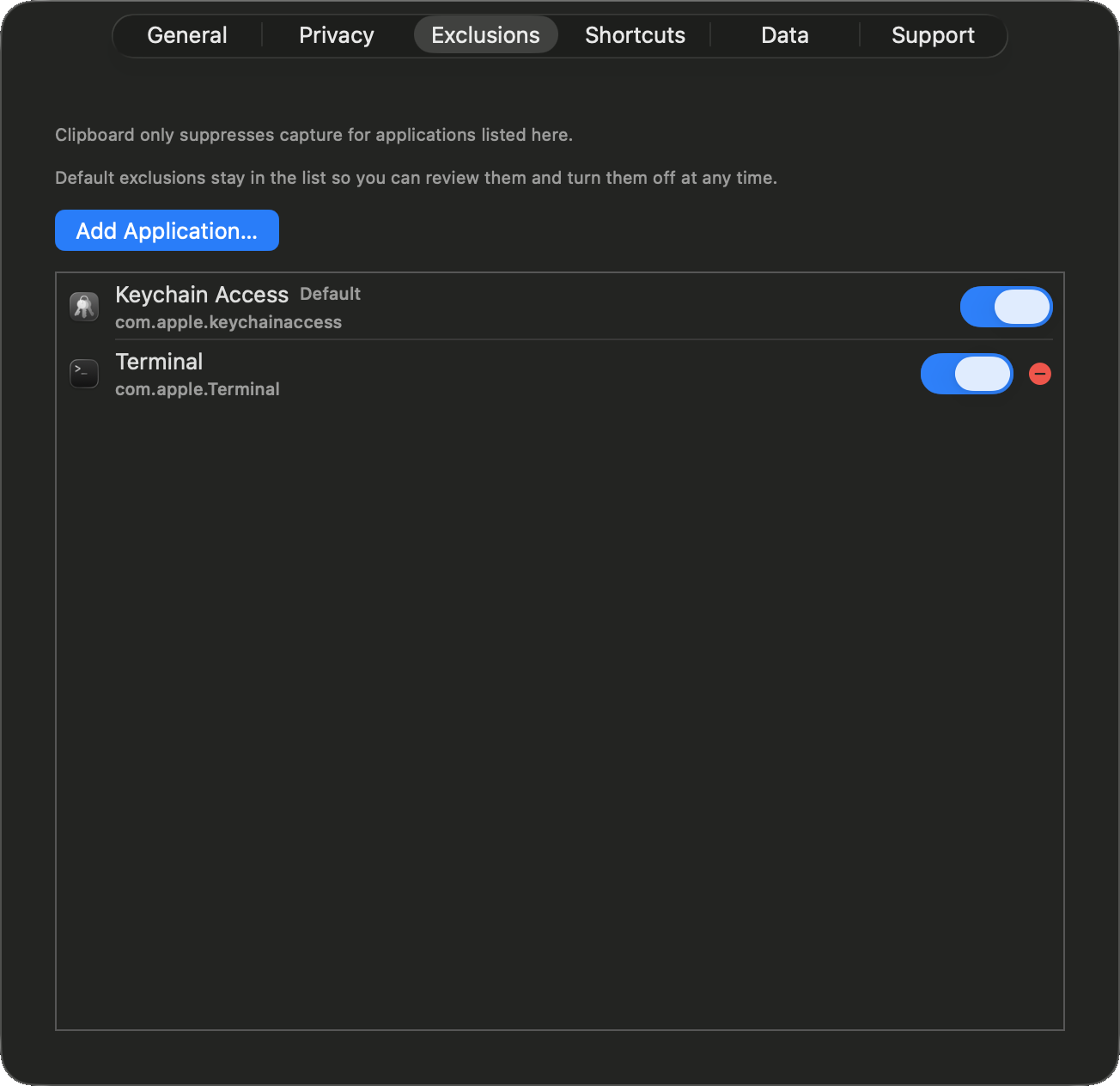
Exclude the apps you never want captured

Keep password managers, banking tools, and other sensitive apps out of history.

  • Built-in default exclusion for Keychain Access — toggle it anytime.
  • Add any app from Settings → Exclusions, or exclude from a clip’s context menu.
  • Optionally remove prior items from that app when you exclude it going forward.
  • Re-enable capture later without reinstalling or resetting settings.
Clipboard Exclusions settings with Keychain Access excluded by default and room for custom apps

Every corner of the app

Power-user details, all in one place.

Apple Intelligence

When available on your Mac, run on-device actions from the row menu: Summarize, Fix Grammar, Make Professional, Make Casual, and Extract Key Points. Toggle AI in Settings → General → Enhancements.

Shortcuts & App Intents

Automate Clipboard from the Shortcuts app and Siri: get or search history, copy text, get favorites, clear non-favorites, and run the same text transforms as the app.

Data & storage

Export or import history as JSON. See a storage breakdown for items, images, rich text, favicons, and orphans. Delete media while keeping plain text, purge legacy data, or clear non-favorites / everything.

Retention & limits

Keep history from 1 day to forever, and cap items from 50 to 50,000. Favorites are never auto-deleted. Pause or resume monitoring from the menu bar anytime.

Menu bar controls

Left-click opens the popover. Right-click for Pause/Resume, Clear History, Settings, Check for Updates, and Quit. Accessibility is optional for monitoring and recommended for paste simulation and Paste Stack.

Welcome tour & updates

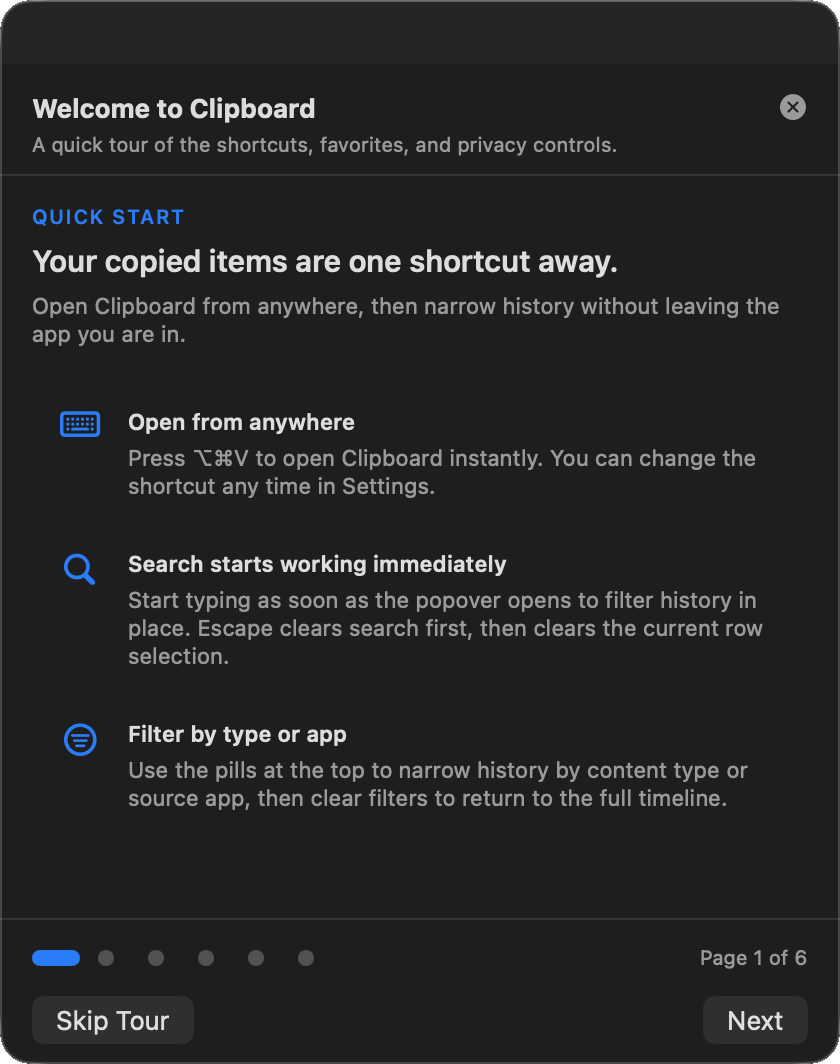
A six-page tour covers search, reuse, favorites, shortcuts, advanced workflows, and privacy. Re-show it anytime from Support. Sparkle keeps Clipboard up to date automatically after install.
Clipboard welcome tour introducing search, favorites, shortcuts, and privacy